Vectura AI Logo
Vectura AI
Official Documentation · User Manual
Navigate
Any Space.
No Hardware.
A complete guide to using Vectura AI — the augmented reality indoor navigation app that works entirely from your smartphone, no beacons or infrastructure required.
Indoor AR Navigation · Android & iOS
Bilkent University · CS491/492 Senior Design
Team T2523
VERSION 1.0
01
Introduction
Overview & Key Features
What Vectura AI is, how it works, and what makes it different from other indoor navigation solutions.

Vectura AI is a smartphone application that provides turn-by-turn augmented reality navigation inside large, complex buildings — hospitals, airports, university campuses, and shopping centres — where GPS signals are unreliable or unavailable. Instead of requiring expensive Bluetooth beacons or Wi-Fi infrastructure installed throughout a building, Vectura AI uses a single QR code placed at the building entrance to anchor its AR coordinate system to the physical space.

Once your position is established, three-dimensional directional arrows are rendered directly onto your live camera view, guiding you floor-by-floor to your chosen destination. All routing runs on your device, so the app works even without a network connection once the building map has been downloaded.

📡

Hardware-Free

No beacons, no special Wi-Fi. A QR code at the entrance is all the infrastructure needed.

🔺

AR Arrow Guidance

3D arrows are projected onto the floor in your camera view, showing exactly where to turn.

🔄

Automatic Rerouting

If you stray more than one metre from the route, a new path is calculated within 2 seconds.

New
🤖

AI-Powered Assistant

Multi-modal voice and text assistant that semantically resolves destinations and auto-starts routing.

🔒

Privacy by Design

No personal data is collected. Your camera feed is never recorded or transmitted.

02
Before You Start
Device Requirements
Minimum hardware and software requirements for running Vectura AI.
Requirement Android iOS Status
Operating System Android 7.0 (API 24) or later iOS 14 or later Required
AR Support ARCore-compatible device ARKit-compatible device (iPhone 6s+) Required
Camera Rear-facing camera with autofocus Rear-facing camera with autofocus Required
Storage (map cache) Up to 50 MB per building Up to 50 MB per building Recommended
ℹ️
Check ARCore compatibility: To confirm your Android device supports ARCore, visit the official Google ARCore supported devices list, or the app will display a notification at startup if your device is not compatible.
03
Core Feature
Navigating a Building
Step-by-step guide to finding your destination using augmented reality guidance.

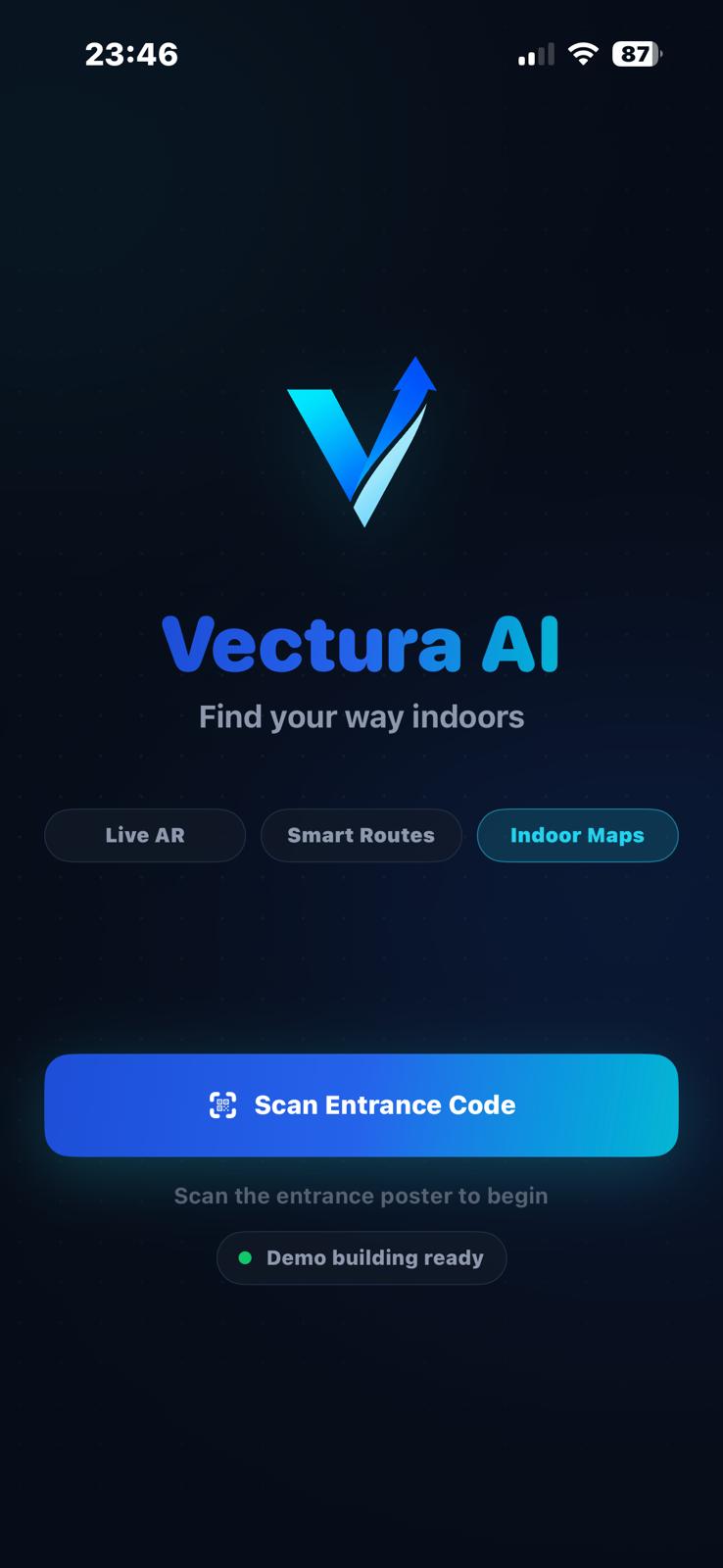
Step A — Main Screen

The central hub of the app where all navigation starts.
Welcome to the central hub of the Vectura AI experience.
Displays the current building name, map version, and status.
Quick-access buttons provided for camera and search.
Ensure the displayed building name matches your location.
Access the scanner to synchronize or browse history.
Main home screen

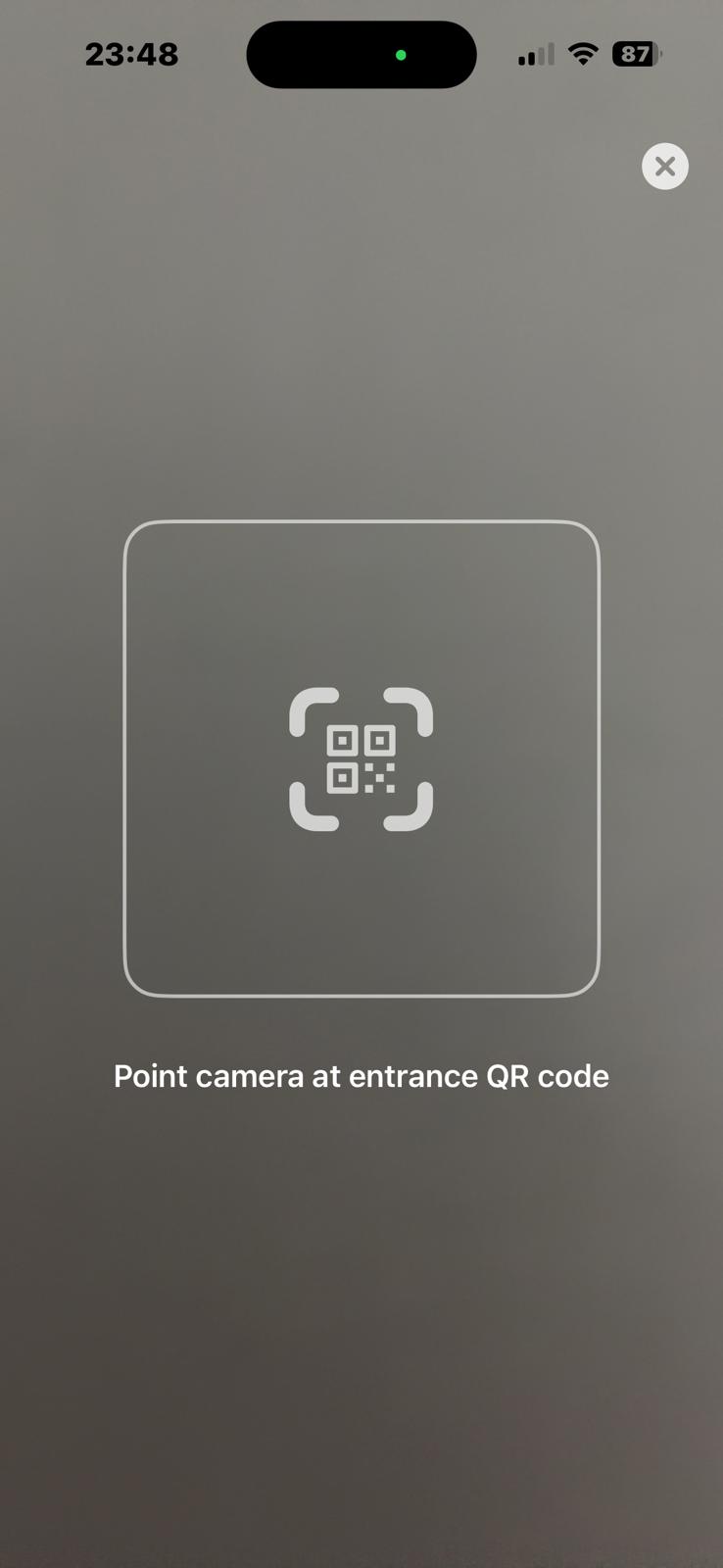
Step B — Scan the Entrance QR Code

Point your camera at the QR code posted at the building entrance or lobby.
Locate the official QR anchor near the entrance or lobby.
Align the QR code within the on-screen brackets.
Hold your device steady for approximately 3 seconds.
Establishes the precise coordinate system for your session.
Entrance QR scanning

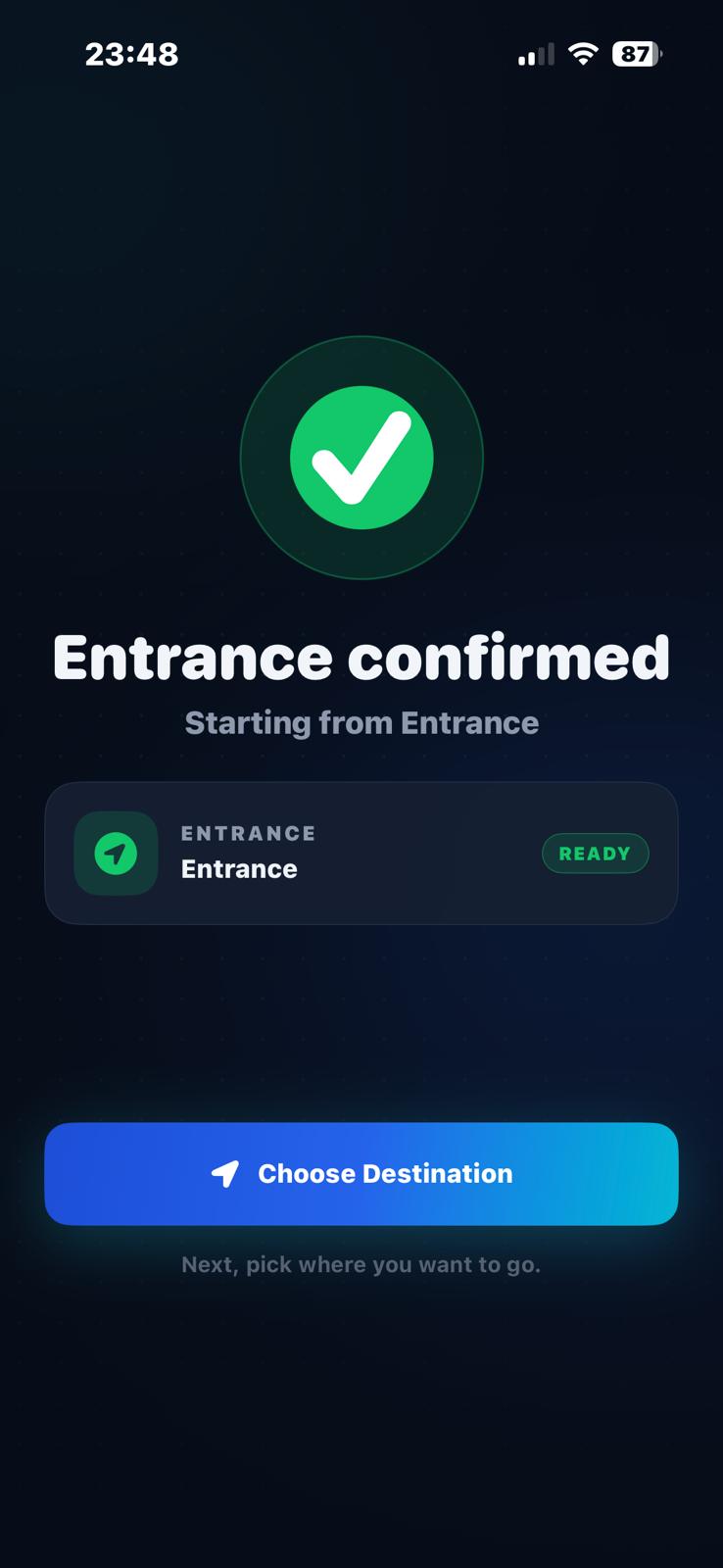
Step C — Successful Scan Result

Confirmation that your location is synchronized with the building.
A 'Location Synchronized' confirmation appears on success.
Displays the building's floor plan and metadata status.
Confirms the device is mapped to the physical space.
Follow on-screen tips if the synchronization fails.
Scan success confirmation

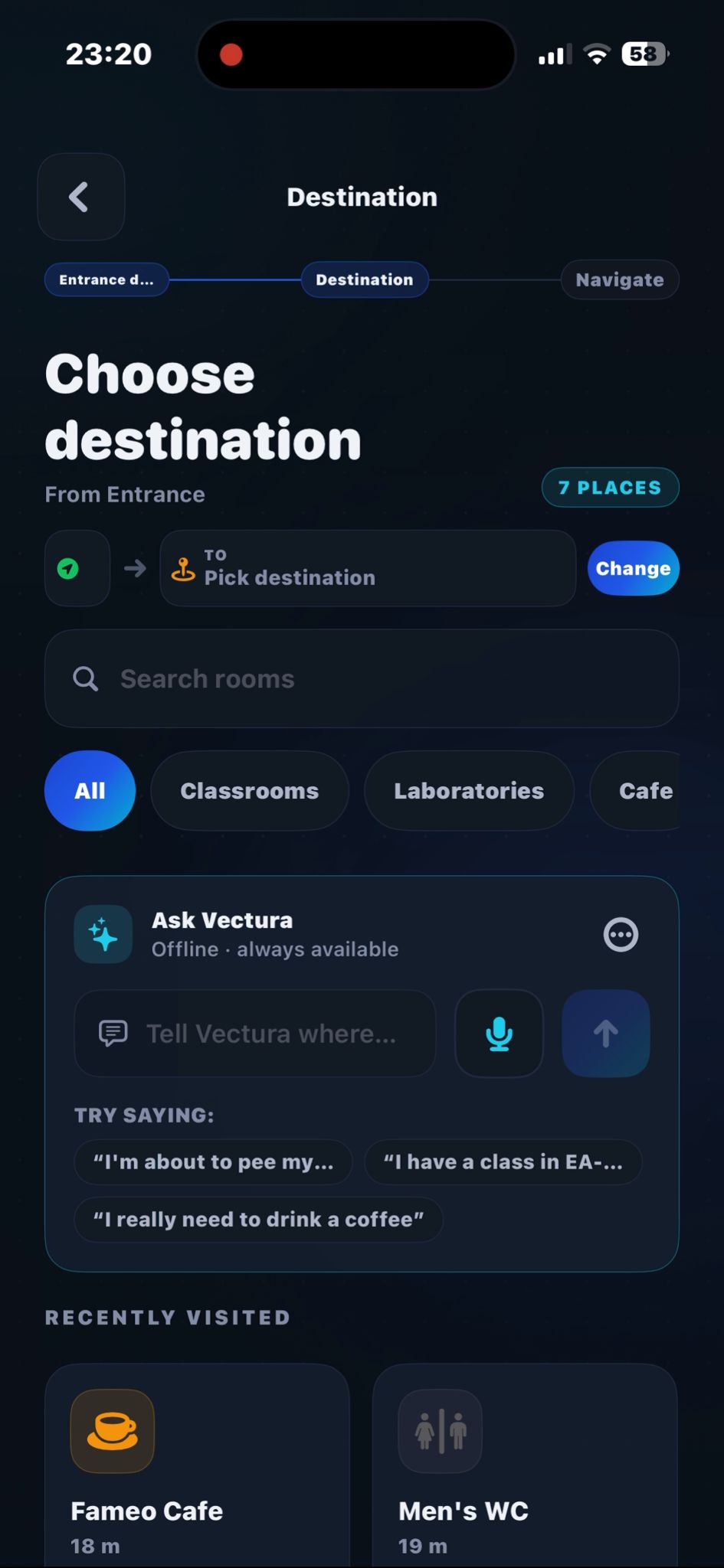
Step D — Choose Destination

Search for the room or department you wish to visit.
Use the search bar to find your target room or department.
Type in room numbers, offices, or staff names.
The search list filters dynamically as you type.
Alternatively, use the AI Assistant for natural language voice or text commands.
AI semantically resolves queries (e.g., "Take me to the nearest exit") and can auto-start navigation.
Tap your chosen destination or follow the AI's automated prompt to proceed.
💡
You can search by room number (e.g. B-204) or by department name.
Destination search

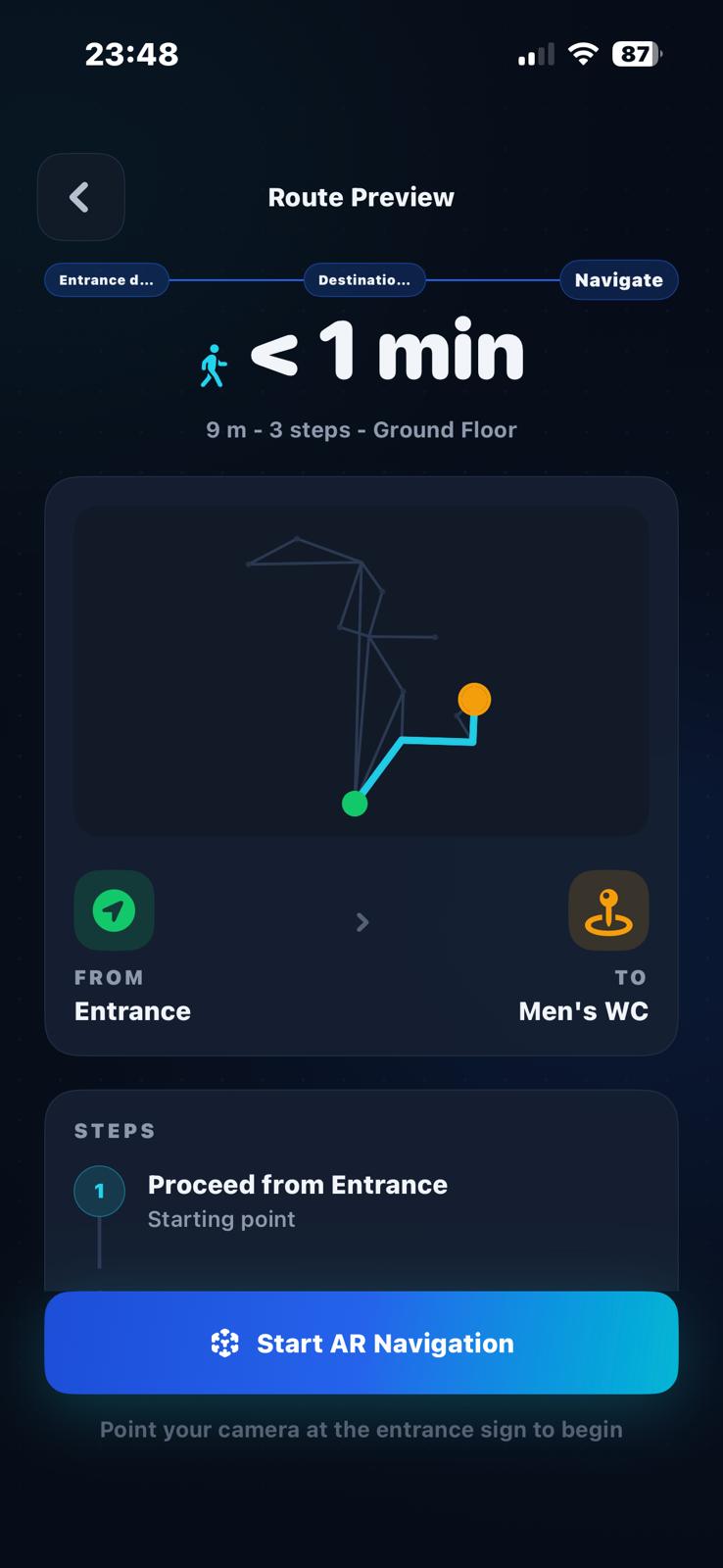
Step E — Route Preview

A preview of your path is shown before AR navigation begins.
Review the 2D schematic of the building floors.
Calculated path is clearly highlighted in blue.
Check total distance and estimated arrival time.
Orient yourself before entering the AR navigation mode.
Route schematic preview

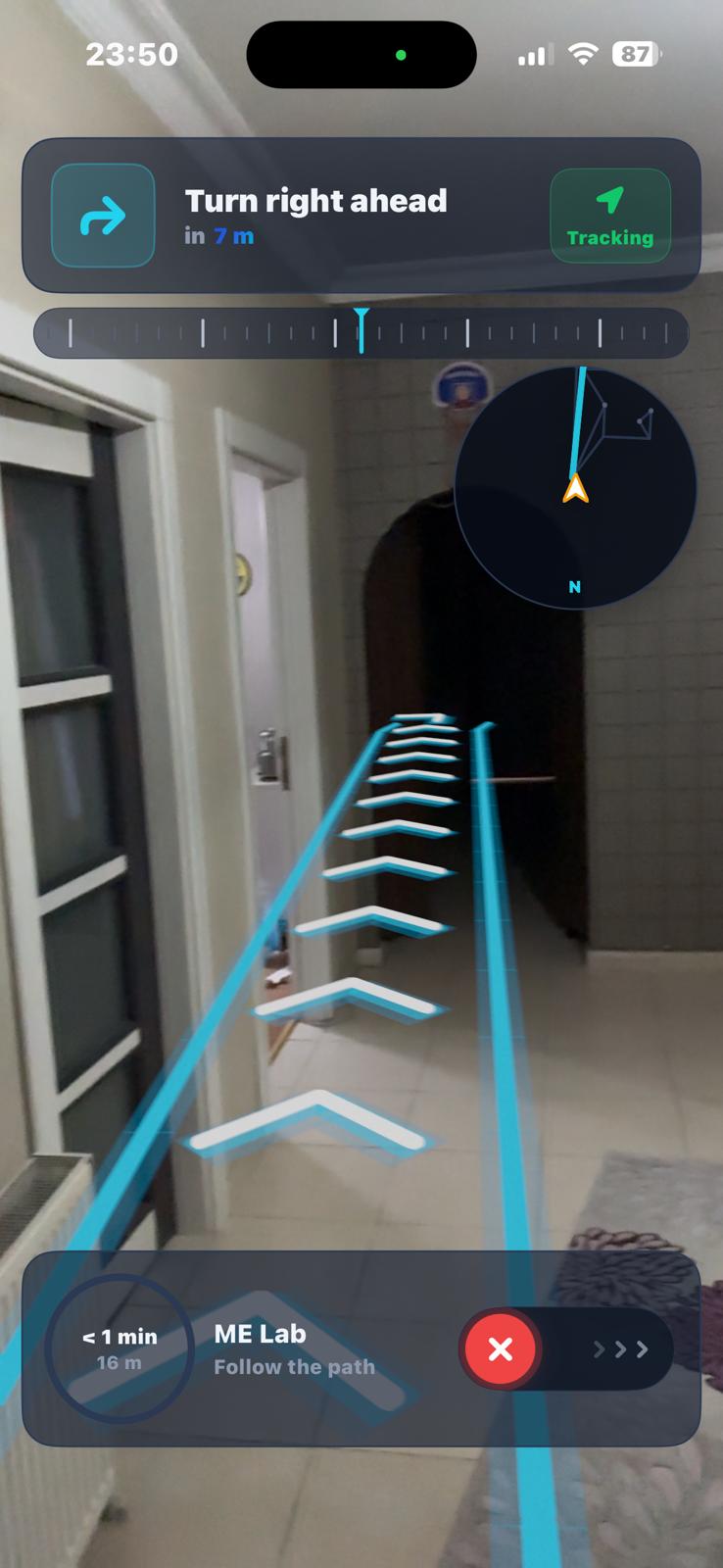
Step F — Navigation Process

Follow the 3D arrows projected onto the floor in your camera view.
AR arrows are projected directly onto your camera feed.
HUD displays next turn, distance, and a progress bar.
Advanced motion tracking stays synced as you move.
Use the red End Route button to stop early.
AR navigation view

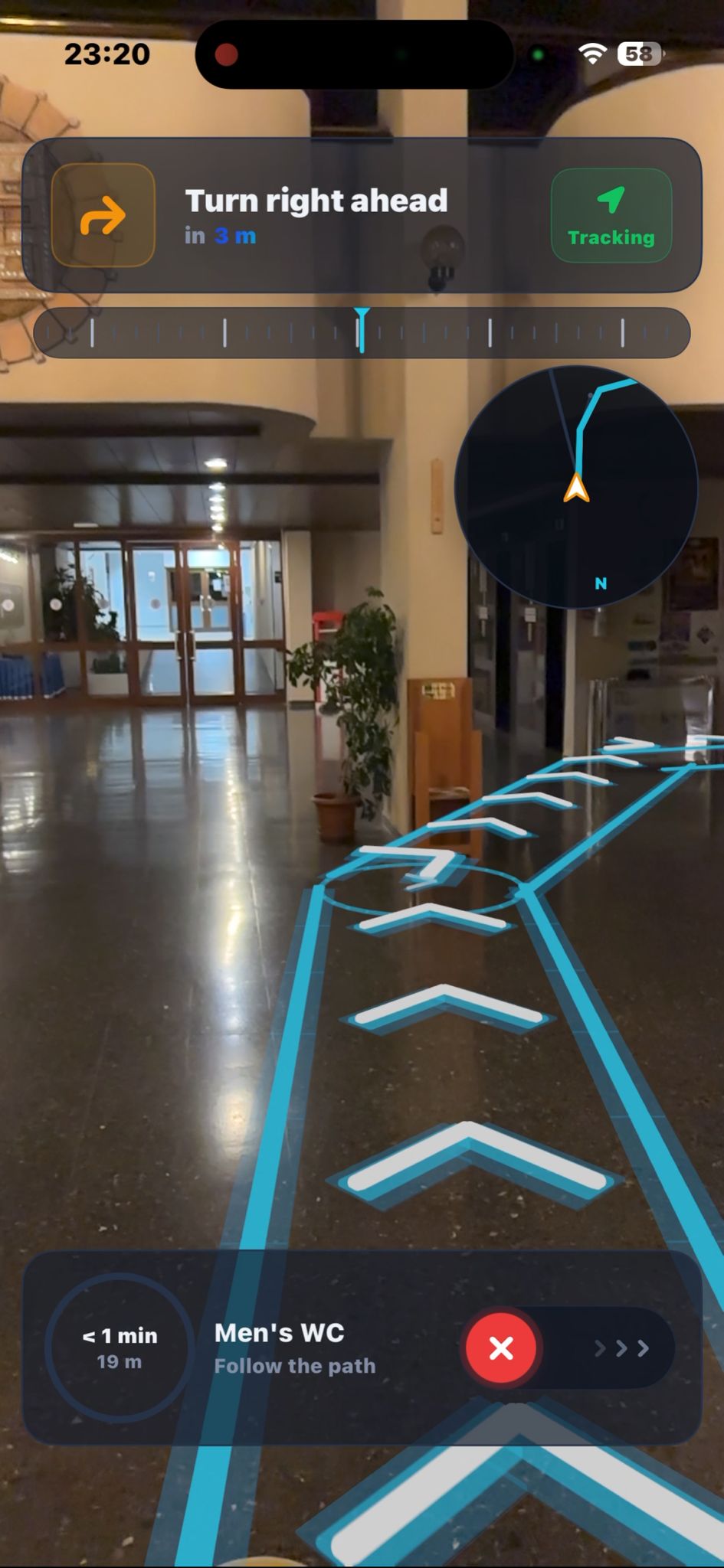
Step G — Turning Points

Clear indicators of when and where to make turns.
Standard arrows transition into animated turning indicators.
Yellow AR markers highlight exact turning points.
HUD updates with high-visibility turn instructions.
Multi-layered visual cues for complex corridor layouts.
Animated turn indicator

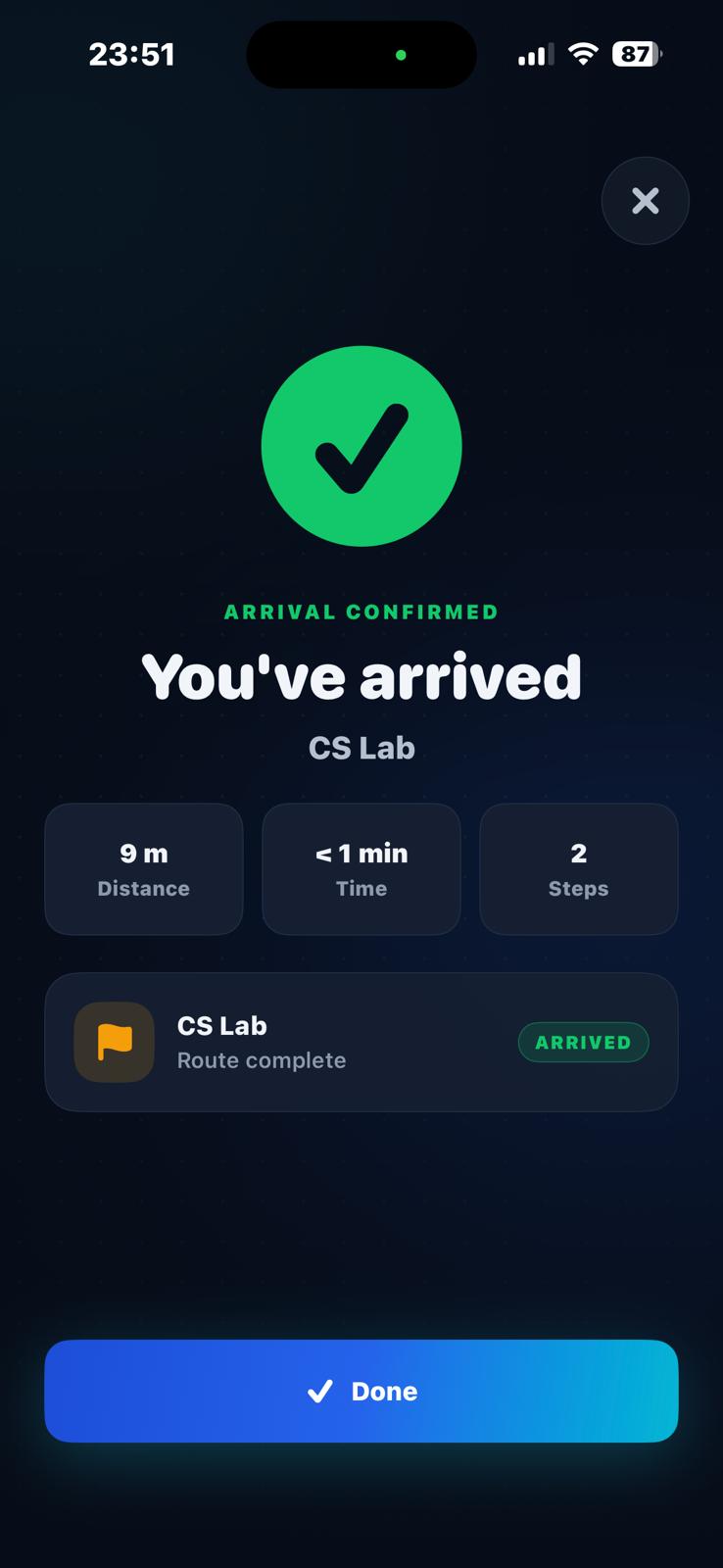
Step H — Arrived Popup

The app confirms when you have reached your destination.
'You Have Arrived' popup appears upon reaching target.
Displays room name, number, and total travel time.
AR session ends automatically to preserve battery life.
Tap Done to return to the home screen.
Arrival confirmation popup
04
Building Administrators
Administrator Guide
How to scan a building and publish a map package for visitors.
⚠️
Administrator access only. This chapter is intended for building operators and system administrators. Visitors do not need to perform any of these steps.

Scanning & Publishing Workflow

1
Obtain Building Operator Permission
Before scanning, obtain explicit written consent from the building operator. Inform them that the scan produces a 3D model of the interior and that the resulting map package will be hosted on a file server accessible to app users.
2
Perform a Physical Walkthrough
Walk the entire floor to be mapped before scanning. Identify and document all hazardous zones, restricted areas, fire exits, and non-walkable regions. These must be marked as non-traversable in the navigation graph before publishing.
3
Scan the Building with Polycam
Open Polycam on a LiDAR-equipped iPhone. Walk slowly through all corridors, turning to capture walls, floors, and ceiling. Scan each room that will be a navigable destination. Export the scan as a GLB, DXF or PNG file when complete.
4
Annotate Points of Interest via Map Editor
Use the Vectura AI Map Editor in Manager Panel to visually add room names, numbers, and department labels to each navigable node. This interface allows you to easily annotate edge types for accessibility-restricted routes.
5
Upload the Map Package
Zip the three output files (building mesh GLB, navigation graph JSON, POI metadata JSON) and upload to the static file server under an incremented version number. Update the version endpoint file. All visitor devices will automatically download the updated package on their next app launch.
6
Place the Entrance QR Code
Print and laminate the signed QR code (generated by the system tools) and affix it at the main entrance of the building, at eye level, on a flat vertical surface with adequate lighting. Confirm QR detection with a test scan before opening to visitors.
05
Connectivity
Offline Mode & Map Updates
How Vectura AI behaves without a network connection and how map updates work.

Vectura AI is designed to operate entirely offline once the building map has been downloaded. All navigation calculations — pathfinding, AR rendering, rerouting — run locally on your device. Internet access is only required for the initial map download and for receiving building layout updates.

📶

During Navigation

Network connection is not required. Navigation continues uninterrupted even if you lose signal inside the building.

🔄

Map Updates

On each app launch with an internet connection, Vectura AI checks for map updates. If a newer version exists, it downloads automatically in the background before you navigate.

📦

Cached Maps

Downloaded maps are stored on your device. You can navigate without any internet connection after the first download.

Update Speed

Map packages are up to 50 MB and download in under 10 seconds on a 4G connection.

06
Privacy & Security
Privacy & Permissions
What data Vectura AI collects, stores, and transmits — and what it doesn't.
🔒
Privacy by design. Vectura AI is built on a data-minimization principle. No personal data is ever collected, stored, or transmitted.
Data Type Collected? Stored Where? Transmitted?
Camera feed Processed in memory only Never stored Never
Location / GPS Not used Never stored Never
Personal identity Not collected Never stored Never
Analytics / usage data Not collected Never stored Never

Vectura AI complies with GDPR (General Data Protection Regulation) and KVKK (Kişisel Verilerin Korunması Kanunu) through data minimization by design. The only outbound network requests the application makes are: (1) a version check on launch and (2) a map package download when an update is available.

07
Support
Troubleshooting & FAQ
Common issues and how to resolve them.
Q The QR code isn't being detected. What should I do?
Ensure the QR code is fully visible and centred in your camera frame. Make sure the area is adequately lit — low light reduces detection reliability. Avoid scanning at extreme angles; try to hold your phone roughly parallel to the surface the code is printed on. If the code is damaged or obscured, contact the building administrator.
Q The AR arrows appear offset from the floor. Why?
This can happen if the QR code was scanned at an unusual angle, causing a slight misalignment in the AR coordinate frame. Exit the navigation session, return to the entrance QR code, and re-scan it. Ensure you hold the phone horizontally when scanning the code for best results.
Q The app says my device is not ARCore compatible. What does that mean?
Vectura AI requires a device that supports Google ARCore (Android) or Apple ARKit (iOS). Older devices or some budget Android models may not be supported. Check the official ARCore supported devices list on Google's website to confirm your device's status.
Q The app went to the background and now asks me to re-scan. Is that normal?
Yes. If the AR session is released by the operating system while the app is in the background, Vectura AI will ask you to re-scan the entrance QR code. Your selected destination is preserved, so you will not need to search again — just re-scan and continue.
Q The map download is taking very long. What can I do?
The map package is up to 50 MB and should download in under 10 seconds on a 4G connection. If the download is slow, try switching to Wi-Fi. If the download consistently fails, check that you have at least 100 MB of free storage on your device and a stable internet connection.
Q My destination is not appearing in the search results.
The search list is drawn from the building's published map package. If a room or department is missing, the building administrator may need to update the map's Points of Interest list. Try searching by room number as an alternative to the room name.
08
Reference
Glossary
Definitions of technical terms used in this manual.
Term Definition
AR (Augmented Reality) Technology that overlays digital content, such as directional arrows, onto a live camera view of the physical world.
ARCore Google's augmented reality SDK for Android, providing motion tracking and plane detection on compatible devices.
ARKit Apple's equivalent augmented reality SDK for iOS devices.
QR Code A two-dimensional barcode placed at building entrances; scanning it establishes the AR coordinate frame used for navigation.
AR Anchor A fixed reference point in the real world from which the app's AR coordinate system is oriented. Established by scanning the entrance QR code.
Map Package A ZIP file containing the building mesh, navigation graph, and point-of-interest data; downloaded once and cached on your device.
POI (Point of Interest) Any named, navigable destination in the building, such as a room, office, or department.
NavMesh A two-dimensional surface baked in the app representing all walkable floor areas, used to determine where AR arrows are placed.
Rerouting Automatic recalculation of a new path when you deviate more than one metre from your original route.
HUD (Heads-Up Display) The on-screen overlay shown during navigation, displaying turn instructions, remaining distance, and a minimap thumbnail.
LiDAR A depth-sensing technology available on select iPhone Pro models, used by administrators to scan building interiors for map creation.
VIO (Visual-Inertial Odometry) The technique ARCore uses to track your device's position and orientation by combining camera imagery and motion sensor data.
AI Assistant An integrated natural language processing tool that allows users to find destinations and start navigation using voice or text commands semantically.
GDPR General Data Protection Regulation — European Union privacy law. Vectura AI complies by design through data minimization.
KVKK Kişisel Verilerin Korunması Kanunu — Turkish personal data protection law. Vectura AI complies by design.